
Articles
How to Plan Group Hangouts Easily With Friends
Discover how to plan group hangouts step by step. Learn efficient scheduling, conflict resolution, and create effortless meetups with friends using Groop.
How to Plan Group Hangouts Easily With Friends

Trying to round up your friends for a last-minute coffee or a weekend hangout often turns into a confusing storm of texts and missed messages. For busy students and young adults, the traditional scheduling chaos turns even a simple meet-up into a headache. By using a group planning app that collects availability and preferences automatically, you can finally skip the confusion and get everyone on the same page—so your next gathering feels effortless instead of stressful.
Table of Contents
- Step 1: Set Up Your Group Planning App
- Step 2: Invite Friends and Gather Preferences
- Step 3: Suggest Time Options and Surface Conflicts
- Step 4: Confirm Details and Finalize Plans
- Step 5: Check Group Availability Before Meeting
Quick Summary
| Key Message | Explanation |
|---|---|
| 1. Set Up Your App First | Create an account, invite friends, and set your availability preferences to streamline coordination. |
| 2. Gather Friends’ Availability | Use clear communication to collect scheduling preferences from participants, ensuring everyone’s availability is respected. |
| 3. Suggest Meeting Options | Utilize your app’s features to propose meeting times and identify conflicts, creating a collaborative planning process. |
| 4. Finalize Meeting Details | Confirm the specifics with a comprehensive message, ensuring all participants agree and are well-informed. |
| 5. Check Attendance Before Meeting | Verify everyone can attend by confirming their availability, allowing room for adjustments to the schedule. |
Step 1: Set Up Your Group Planning App
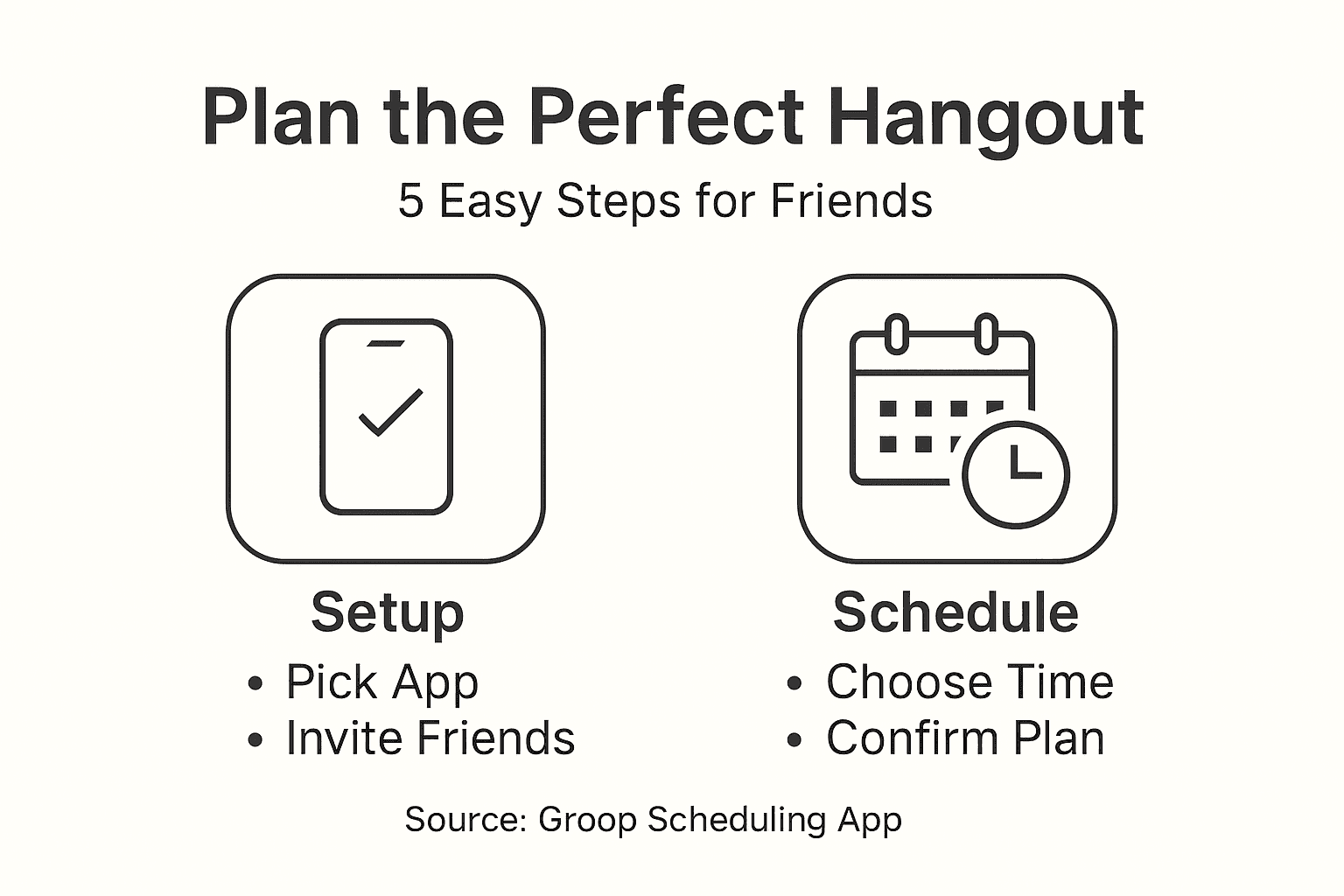
In this crucial section, you will configure your group scheduling application to streamline friend meetup coordination. The setup process involves creating your account, inviting friends, and establishing your availability preferences.
Start by downloading your preferred group planning app and creating a user profile. Most apps allow quick signup through email or social media accounts. Once logged in, navigate to the group coordination section where you can invite friends by sharing a unique link or sending direct invitations through the app. Input your general availability windows personal preferences for meetup times and locations to help the app automatically suggest optimal meeting slots.
The goal is creating a seamless planning experience that minimizes the traditional back-and-forth text messaging chaos. Configure your settings to reflect your social group's typical scheduling patterns and communication style.
Pro tip: Configure your app's notification settings to balance staying informed without getting overwhelmed by constant updates.
Here's a comparison of common group planning app features and how they benefit group meetups:
| Feature | How It Works | Planning Benefit |
|---|---|---|
| Calendar Integration | Syncs with users' calendars | Prevents double-booking |
| Polling for Availability | Gathers preferred times from everyone | Speeds up decision-making |
| Automated Reminders | Sends prompts before events | Reduces missed meetings |
| Time Zone Detection | Adjusts for different locations | Ensures correct meeting times |
| Visual Overlap Charts | Shows shared availability visually | Helps spot best meeting slots |
Step 2: Invite Friends and Gather Preferences
Now that your group planning app is set up, its time to invite friends and collect their scheduling preferences. Effective group communication starts with clear and considerate outreach.
Reach out to potential group members through multiple channels like messaging apps, social media, or email. When sending invitations, include key details about the purpose of your meetup and ask each participant to share their availability and preferences. Some apps offer built-in polling features that make gathering scheduling information seamless. Request specific time windows that work best for everyone and note any constraints like work schedules or prior commitments. The goal is creating a collaborative process where everyone feels their schedule is respected.
Consider creating a shared document or using your app's group coordination tools to track responses. This helps visualize everyone's availability and makes finding mutual time slots easier. By establishing transparent communication from the start, you reduce potential scheduling conflicts and ensure a smoother planning experience.
Pro tip: Set a response deadline when gathering preferences to prevent endless back-and-forth and keep your group planning momentum.
Step 3: Suggest Time Options and Surface Conflicts
Your next challenge is navigating the complex world of group scheduling by suggesting time options and identifying potential conflicts. AI powered scheduling tools can dramatically simplify this process.

Leverage your group planning app's intelligent matching features to automatically generate potential meeting times that work for most participants. Look for visual overlays or color coded calendars that highlight shared availability and pinpoint scheduling conflicts. Pay close attention to time zones if your group includes members from different regions. When conflicts emerge, the app should help you quickly identify alternative windows or prompt group members to provide additional flexibility.
Consider creating multiple time slot options and allowing group members to vote or indicate their preferences. This collaborative approach ensures everyone feels heard and increases the likelihood of finding a mutually agreeable meeting time. By using smart scheduling tools, you transform what could be a frustrating negotiation into a smooth, efficient process.
Pro tip: Always include a buffer of 15 minutes around suggested meeting times to account for individual scheduling transitions.
Step 4: Confirm Details and Finalize Plans
With potential meeting times identified, its time to lock in the specifics and ensure everyone is on the same page. Group meeting scheduling strategies can help transform potential plans into concrete commitments.
Review the selected time slot and send out a comprehensive confirmation message to all participants. Include critical details like exact date, time, location (or virtual meeting link), and any additional requirements such as preparation materials or dress code. Most group planning apps offer built-in confirmation features that automatically sync with participants calendars and send reminder notifications. Double check that all members have acknowledged the invite and update the plan if any last minute conflicts arise.
Encourage participants to provide final feedback or raise any potential issues before the meeting. This final review stage helps prevent misunderstandings and ensures everyone feels prepared and included. The goal is creating a clear, mutually understood plan that minimizes confusion and maximizes group excitement about the upcoming gathering.
The following table summarizes strategies for resolving common group scheduling conflicts:
| Conflict Type | Recommended Solution | Result |
|---|---|---|
| Overlapping Commitments | Suggest alternative time slots | Higher member participation |
| Unclear Preferences | Request specific availability input | More accurate scheduling |
| Last-Minute Changes | Use group chat for updates | Faster issue resolution |
| Different Time Zones | Use app's local time display | Reduces confusion |
Pro tip: Create a group chat or thread specifically for last-minute coordination to keep all communication centralized and transparent.
Step 5: Check Group Availability Before Meeting
Before finalizing your group hangout, its critical to confirm everyone can actually attend. Research group availability forms provide an excellent strategy for coordinating schedules efficiently.
Utilize your group planning app or create a shared digital form where participants can input their specific availability windows. Look for overlapping time slots that work for most members and pay special attention to potential conflicts or constraints. Some apps offer visual calendar integrations that automatically highlight common free periods, making it easier to identify the most convenient meeting times for everyone.
Consider creating multiple proposed time options to increase flexibility. If significant scheduling challenges emerge, be prepared to have a candid conversation about priorities and potential compromises. The goal is finding a time that works for the majority while being respectful of individual schedules and commitments.
Pro tip: Always include a brief window of flexibility around proposed meeting times to accommodate potential minor scheduling adjustments.
Simplify Group Hangouts With Groop's Easy Scheduling Tools
Coordinating group hangouts often means juggling conflicting schedules, endless back-and-forth messages, and last-minute changes. The article highlights common struggles like gathering availability, surfacing conflicts, and finalizing plans that feel natural to everyone. If you are tired of the chaos from polls, confusing chats, and scheduling conflicts, Groop offers a refreshing solution designed specifically for friend groups and small social squads.
Groop streamlines social planning by lining up availability, revealing conflicts early, and presenting simple, clear meeting time options without overwhelming polls or complicated scheduling. This keeps your group’s vibe intact and the process relaxed and efficient. Ready to leave behind scheduling frustrations and focus on what matters most your time with friends Start your hassle-free group planning today at Groop Labs. Discover how easy it can be to organize your next hangout by exploring practical tips and the app’s features at how to plan group hangouts easily and experience the ultimate freedom of quick, pressure-free decisions.
Frequently Asked Questions
How do I set up my group planning app for hangouts?
Start by downloading your preferred group planning app and creating a user profile. Then, invite friends by sharing a unique link or sending invitations directly through the app.
What information should I include when inviting friends to a group hangout?
Include details about the purpose of the meetup and ask each participant to share their availability and preferences. This will help everyone understand the plan and encourage active participation.
How can I suggest time options to my group for a hangout?
Utilize your group planning app’s intelligent features to generate potential meeting times that accommodate most participants. Consider allowing group members to vote or indicate their preferences to streamline the decision-making process.
What should I do to confirm plans once I have selected a time for the hangout?
Send a comprehensive confirmation message to all participants with details like date, time, location, and any additional requirements. Ensure everyone acknowledges the invite to avoid last-minute misunderstandings.
How can I check group availability before finalizing a hangout?
Utilize your group planning app or create a shared digital form for participants to input their specific availability windows. Look for overlapping time slots to find the most convenient meeting times for the majority of the group.