
Articles
Friend Group Organization Guide for Effortless Meetups
Follow this friend group organization guide for efficient, stress-free planning and easy decision-making. Streamline meetups with step-by-step instructions.

Friend Group Organization Guide for Effortless Meetups

Juggling busy class schedules and unpredictable work shifts makes organizing casual meetups with friends feel nearly impossible for many North American university students. Staying connected matters, yet group chats and endless texts rarely solve the chaos. With the rise of real-time group coordination apps like Grooop, arranging hangouts and study sessions gets far easier. Discover how this tech-driven approach brings clarity and simplicity to social planning—no more confusion, missed messages, or wasted time.
Table of Contents
- Step 1: Download Grooop and Set Up Your Friend Group
- Step 2: Start a Plan and Gather Availability
- Step 3: Surface Conflicts and Choose Options
- Step 4: Confirm Plans and Notify the Group
- Step 5: Review and Refine Group Organization
Quick Summary
| Key Insight | Explanation |
|---|---|
| 1. Download and Set Up Grooop | Begin by installing Grooop and creating your friend group for easier social planning. |
| 2. Gather Availability Efficiently | Use Grooop’s functionality to collect and display group members' available times in real-time. |
| 3. Identify Conflicts Visually | Grooop automatically highlights scheduling conflicts to simplify decision-making for meetups. |
| 4. Confirm Plans with Clarity | Finalize meetup details and send clear notifications to the group to avoid confusion. |
| 5. Review for Future Improvements | Post-meetup, analyze attendance and feedback to refine future planning strategies. |
Step 1: Download Grooop and Set Up Your Friend Group
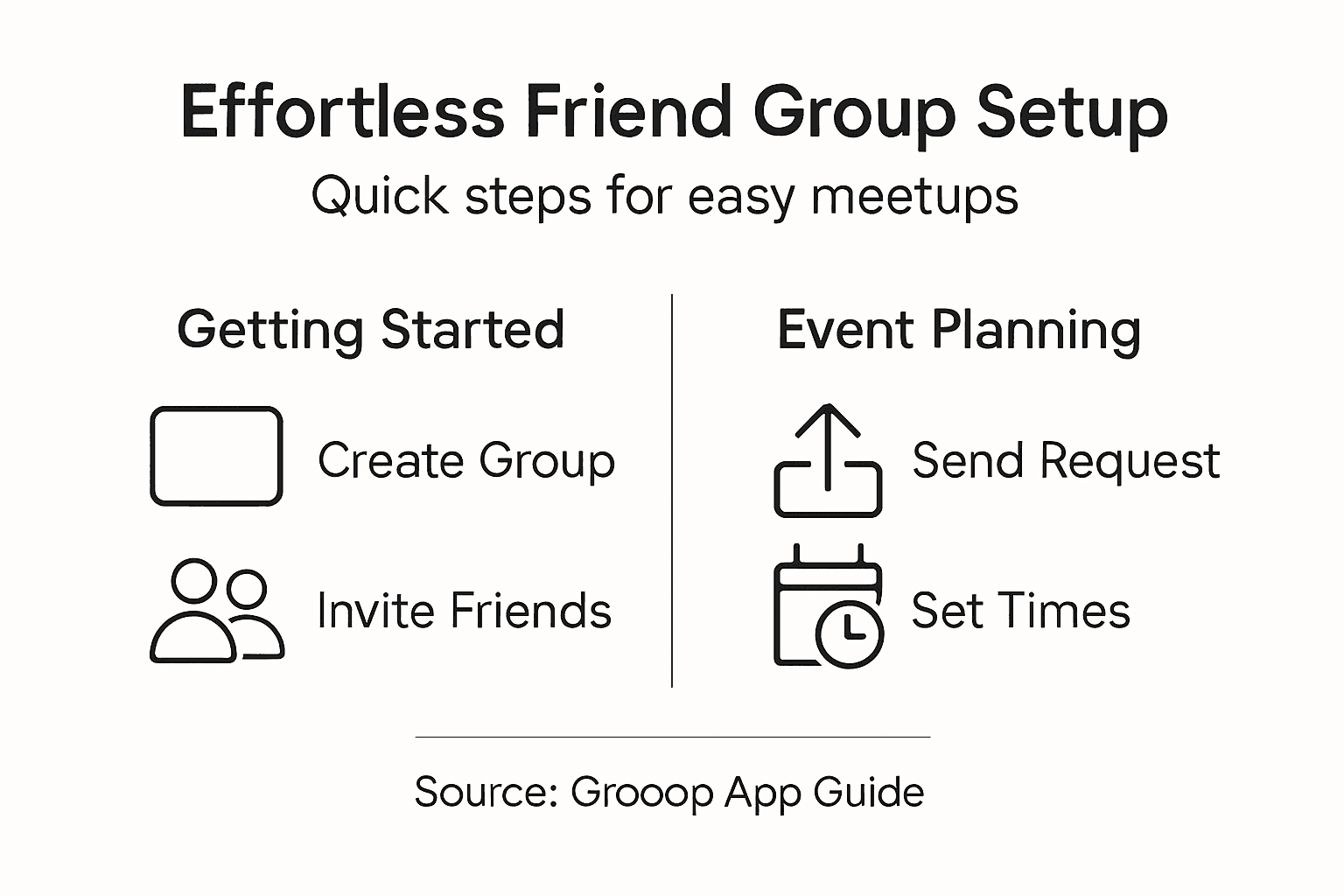
Streamlining your social planning starts with downloading the Grooop app and creating your first friend group. This quick setup will transform how you coordinate meetups, making group organization smoother and more enjoyable.
To get started, head to your device's app store and download Grooop. The installation process is straightforward - just like setting up a group chat on other messaging platforms. Once installed, create your account using your email or phone number, then follow these key steps:
- Open the Grooop app
- Tap the "Create Group" button
- Select friends from your contacts
- Name your group (be creative!)
- Set a fun group icon
The app makes group coordination incredibly simple. You can instantly start planning events, checking everyone's availability, and deciding on hangout details without endless back-and-forth messaging. Grooop's interface is designed to keep things casual and low-pressure.
After creating your group, invite members by sharing a unique group link. Everyone will receive an invitation, and once they join, you can start planning your next adventure together.
Pro tip: Choose a group name that makes everyone smile and reflects your squad's personality - it sets the tone for fun group interactions.
Step 2: Start a Plan and Gather Availability
Now that your friend group is set up in Grooop, it's time to kick off your first hangout plan. The availability gathering process is where the app truly shines, making coordination effortless and fun.
Open your newly created group and tap the "Start a Plan" button. Grooop will guide you through creating an event with smart group organizing techniques. You'll want to:
- Select potential dates and times
- Choose event type (dinner, study session, movie night)
- Set initial location preferences
- Send availability request to group members
The magic of Grooop is eliminating the endless text message negotiations that typically drain your social energy.
Once you send the availability request, each group member can quickly mark their preferred times and potential conflicts. Real-time updates mean everyone sees responses instantly, reducing communication friction. The app automatically highlights the most compatible times for your entire group, making decision-making straightforward.

Pro tip: Create multiple potential time slots to increase the chances of finding a perfect group meetup window.
Step 3: Surface Conflicts and Choose Options
With availability responses rolling in, Grooop now helps you navigate the tricky terrain of group scheduling. Group scheduling technologies make finding the perfect meetup time less like solving a complex puzzle and more like a collaborative game.
The app automatically highlights potential scheduling conflicts and presents optimal time windows that work for most group members. Look for these key indicators:
- Green slots indicate universal availability
- Yellow slots show partial group availability
- Red slots represent significant scheduling conflicts
- Time slots with most group members marked as available
Successful group planning is about flexibility and finding common ground without stress.
If no single time slot works perfectly, Grooop allows you to propose alternative options. You can see exactly who can and cannot make specific times, enabling quick negotiation. The visual interface makes it easy to spot compromise windows where most friends are free.
Pro tip: When multiple conflicting schedules emerge, consider splitting the group into smaller subgroups or finding creative compromise times that accommodate most participants.
Step 4: Confirm Plans and Notify the Group
With everyone's preferences considered, it's time to lock in your hangout and make sure everyone's on the same page. Grooop simplifies the confirmation process by automatically handling group meeting notifications that keep everyone informed.
The app will guide you through finalizing your meetup details with these key steps:
- Review and select the most compatible time slot
- Confirm specific location details
- Add any additional event notes or requirements
- Send group-wide confirmation message
The goal is crystal clear communication that leaves no room for confusion.
Once you confirm the plan, instant notifications will be sent to all group members. Each participant receives a detailed summary including time, location, and any special instructions. The visual interface makes it easy to see who has viewed and acknowledged the invite, eliminating the typical group chat chaos.
If someone can no longer make the planned time, Grooop allows quick rescheduling without endless back-and-forth messaging. The app keeps the planning process smooth and stress-free.
Pro tip: Enable push notifications to ensure no group member misses important plan updates or last-minute changes.
Step 5: Review and Refine Group Organization
After completing your first Grooop-organized meetup, it's crucial to assess how smoothly things went and identify areas for improvement. Group scheduling optimization isn't a one-time task but an ongoing process of refinement.
The app provides several tools to help you analyze and enhance your group's coordination:
- Review attendance data for each event
- Check response rates and engagement levels
- Analyze scheduling conflicts
- Collect anonymous group feedback
- Track member participation trends
Small adjustments can dramatically improve your group's social dynamics and planning efficiency.
Real-time analytics help you understand exactly what works and what doesn't in your group's meetup strategy. The visual dashboard breaks down participation rates, shows which time slots generate the most interest, and highlights potential scheduling bottlenecks.
If certain members consistently struggle to attend or communication feels fragmented, Grooop allows you to make quick adjustments. You can modify group settings, experiment with different scheduling approaches, or create subgroups that better match members' availability and preferences.
Here's a quick reference comparing Grooop's main planning features and their user benefits:
| Grooop Feature | What It Does | User Benefit |
|---|---|---|
| Group Creation | Sets up custom friend circles | Streamlines future planning |
| Availability Polling | Collects and displays member times | Reduces messaging overload |
| Conflict Detection | Highlights scheduling conflicts | Simplifies complex decisions |
| Real-Time Notifications | Sends instant plan updates | Keeps everyone in sync |
| Analytics Dashboard | Tracks attendance and engagement | Helps improve group dynamics |
Pro tip: Schedule a quarterly group review where members can openly discuss and vote on preferred meetup styles and communication methods.
See how Grooop's platform compares with traditional group planning methods:
| Aspect | Traditional Group Chats | Grooop App |
|---|---|---|
| Coordination Time | Often slow and chaotic | Fast and organized |
| Conflict Handling | Manual, error-prone | Automatic, visually flagged |
| Plan Confirmation | Prone to miscommunication | Clear, app-based notification |
| Performance Data | None available | Real-time analytics provided |
Simplify Your Friend Group Meetups with Grooop
Coordinating hangouts, gathering availability, and managing conflicts can drain your time and energy. The article highlights key challenges in friend group organization like endless messaging, unpredictable scheduling conflicts, and unclear confirmations. Grooop addresses these pain points by offering a streamlined, pressure-free scheduling tool designed specifically for casual friend groups and squads.
Experience effortless planning that keeps your group’s vibe intact while automatically surfacing the best meeting times and notifying everyone clearly. Whether you want to start a plan, track responses in real time, or review group engagement, Grooop’s intuitive interface takes the chaos out of social coordination.
Ready to transform your social planning from stressful to seamless? Discover how Grooop can revolutionize your group meetups starting today. Visit Grooop’s homepage to download the app and create your first friend group. Explore more about how to start a plan and gather availability with ease and say goodbye to endless back-and-forth. Make your next group hangout simple and enjoyable with Grooop. Act now and keep your social life effortlessly organized.
Frequently Asked Questions
How do I download and set up my friend group in Grooop?
To download and set up your friend group in Grooop, visit your device's app store and install the app. After opening Grooop, create a group by tapping the 'Create Group' button, selecting friends from your contacts, naming your group, and setting a group icon.
How do I gather my friends' availability for a meetup?
To gather your friends' availability, open your Grooop group and tap the 'Start a Plan' button. Select potential dates and times for your event, then send an availability request to your group members to see when they are free.
What should I do if there are scheduling conflicts among my friends?
If you encounter scheduling conflicts, Grooop will automatically highlight these and suggest optimal time slots that work for most members. Review the green, yellow, and red indicators to identify flexible times and propose alternative options to the group if needed.
How can I confirm our plans and keep everyone informed?
To confirm your plans, review the most compatible time slot within Grooop, specify the location details, and send a group-wide confirmation message. This ensures that all members receive instant notifications with the finalized information for your meetup.
What should I do after our meetup to improve future planning?
After your meetup, use Grooop to review attendance data and member participation trends. Collect feedback from group members to identify areas for improvement, making adjustments for future events to enhance your group’s coordination and communication.
How can I optimize my group's organization in Grooop over time?
To optimize your group's organization in Grooop, track engagement levels and analyze scheduling conflicts after each event. Make small adjustments based on analytics and regular member feedback to refine your planning strategies continuously.